
Video corruption caused by viruses or malware can be distressing. Whether these video files contain personal memories, professional recordings, educational lectures, or office presentations, losing access can create significant inconvenience and disruption. When your video becomes corrupted, you may encounter error messages, playback interruptions, midway freezes, or distorted audio and video visuals.
In today’s digital world, virus or malware-related corruption has become more prevalent and can occur at any time without warning. In this guide, we will explain why video files get corrupted by viruses, the symptoms of corruption, and most importantly, how to fix video files corrupted by viruses. Let’s get started!
How do Viruses and Malware Corrupt Video Files?
When malicious programs like viruses or malware infect your video files, they can:
- Modify file structure
- Inject malicious code into files
- Encrypt files (ransomware)
- Delete or overwrite file headers
- Damage storage sectors
Video files such as MP4, MOV, AVI, MKV, and WMV rely on a proper file structure, including headers, metadata, codecs, and synchronisation between audio and video streams. Even minor damage to these components can make the video unplayable.
Common Signs of Virus-Corrupted Video Files
Before diving into video repair fixes, it is important to identify whether your video file is corrupted. Here are some common symptoms that you might encounter if the video is virus-corrupted:
- The video will partially open or won’t play at all
- Encounter error messages like “Cannot play this file”, “File format not supported”, and “Video is corrupted.”
- Only audio plays, but no video.
- Distorted or pixelated visuals.
- File extension changes automatically.
- The media player crashes while playing the video.
If you encounter any of these issues, there is a high chance the virus has affected your video files.
Quick Methods to Repair Virus-Infected Video Files
Now that you are familiar with different reasons why your videos get corrupted due to a virus or malware attack, it’s time to apply fixes. Here are some quick methods that you can try to repair your corrupt/damaged video files:
Method 01: Try Removing Virus or Malware
Before attempting to repair the video file, you must remove the virus. If you skip this step, the infection may re-corrupt the file. All you have to do is:
- Perform a full scan of your device using a reliable antivirus program.
- Use Windows Defender or any updated security software.
- Disconnect your PC from the internet during scanning to prevent further spread.
- Use a malware removal tool for deep scanning.
Once the virus is completely removed, restart your computer and then proceed to fix the video file.
Method 02: Use VLC Media Player to Repair Videos
VLC Media Player is a popular open-source video player for Windows PCs that supports a wide range of video formats and can also help repair videos affected by minor corruption. It offers a repair feature for certain formats like AVI. To repair videos using VLC media player, you have to:
- First, right-click the MP4/MOV video file, select Rename, change the file extension to .AVI, and press Enter.
- Launch VLC media player.
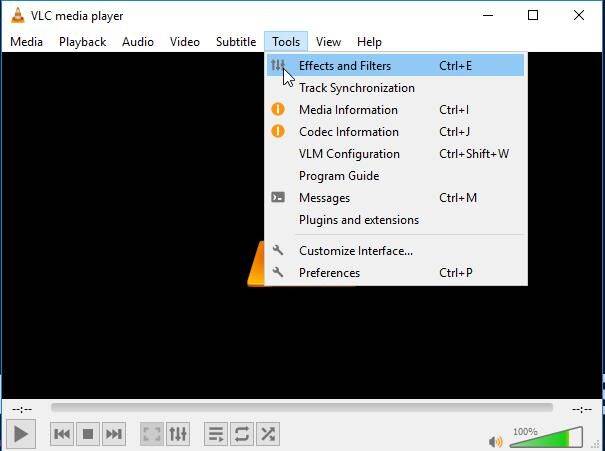
- Click Tools > Preferences > Input or Codecs.
- Now, select Always Fix next to Repair AVI Files.
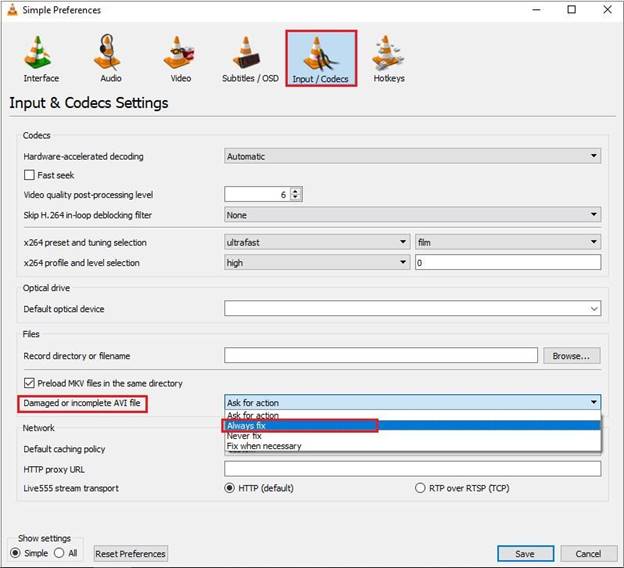
- Lastly, click Save to save the changes.
Method 03: Use Professional Video Repair Software
If VLC doesn’t work, professional video repair software like Stellar Repair for Video can help you. When your video file is infected by a virus or malware, its internal structure, including headers, frames, metadata, and audio-video components, can get damaged. This all-in-one video repair tool can help you repair videos damaged due to playback failure, distorted visuals, audio-video synchronisation issues, and other reasons.
Key Features of Stellar Repair for Video Software
- This video repair software supports the repair of damaged video files of multiple formats, including MP4, MOV, AVI, MKV, WMV, FLV, and more.
- It can repair video saved on any internal or external storage device, such as USB drive, memory card, external hard drive, etc.
- It uses a sample video from the same device and format to reconstruct severely corrupted files with higher accuracy.
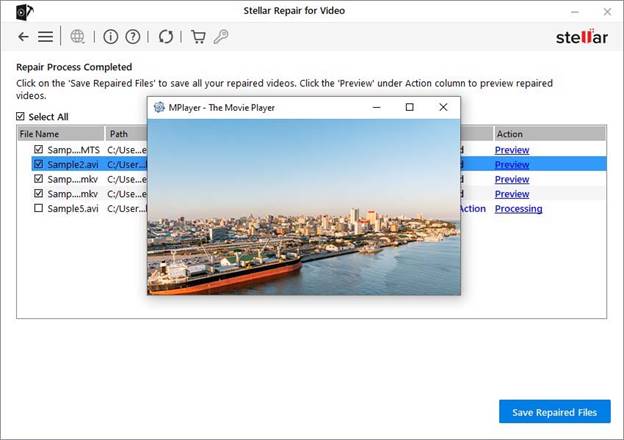
- The preview feature lets you preview the repaired video to ensure quality and integrity before saving it.
- It offers a simple and intuitive interface suitable for both technical and non-technical users.
Here’s how to fix video files corrupted by virus or malware using this professional video repair software:
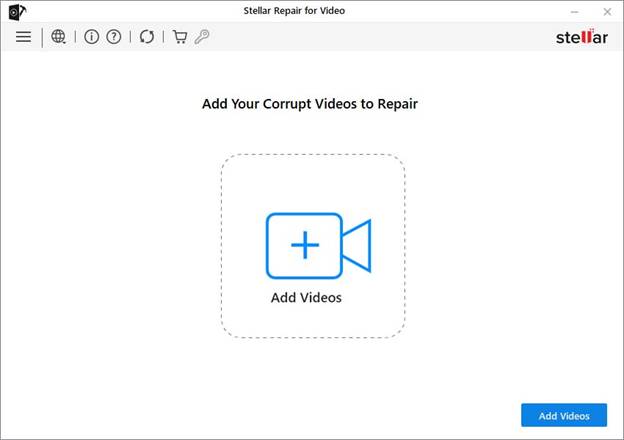
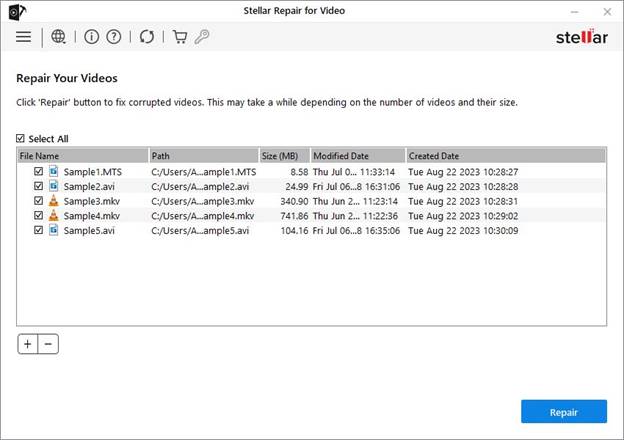
Step 1: Download and install the Stellar Repair for Video software on your Windows PC/Mac. Launch the software and from the home screen, click Add Videos to upload the corrupted video file(s) that you need to repair.
Step 2: After adding the files, click the “Repair” button. The software will scan the selected videos and analyse the damaged components, including file headers and audio-video data.
Step 3: Once the repair process is complete, preview the repaired files and tap Save Repaired Files to save them at desired location on your PC.
Additional Tip: How to Prevent Video Corruption in Future
Prevention is always better than repair. You can consider the following tips to avoid video corruption caused by virus or malware attack:
- Install a Reliable Antivirus: Protect your device against malicious programs like viruses or malware using a reliable third-party Antivirus tool.
- Avoid Suspicious Downloads: Do not download videos, cracked software, or attachments from unknown sources.
- Keep Apps/OS Updated: Ensure the apps and OS installed on your device are up-to-date.
- Maintain Regular Backups: Create regular backups of your important files using cloud backup, an external hard drive, and built-in backup utilities.
Conclusion
Video files corrupted by virus or malware can be stressful, especially if they contain valuable memories or important professional content. However, in most of the cases, these video files can be easily repaired. Start with basic methods such as completely removing the virus from your PC or using the VLC in-built features. For severe corruption, use professional video repair software like Stellar Repair for Video. With the right approach, you can recover your corrupted videos and protect your digital content from future malware attacks.