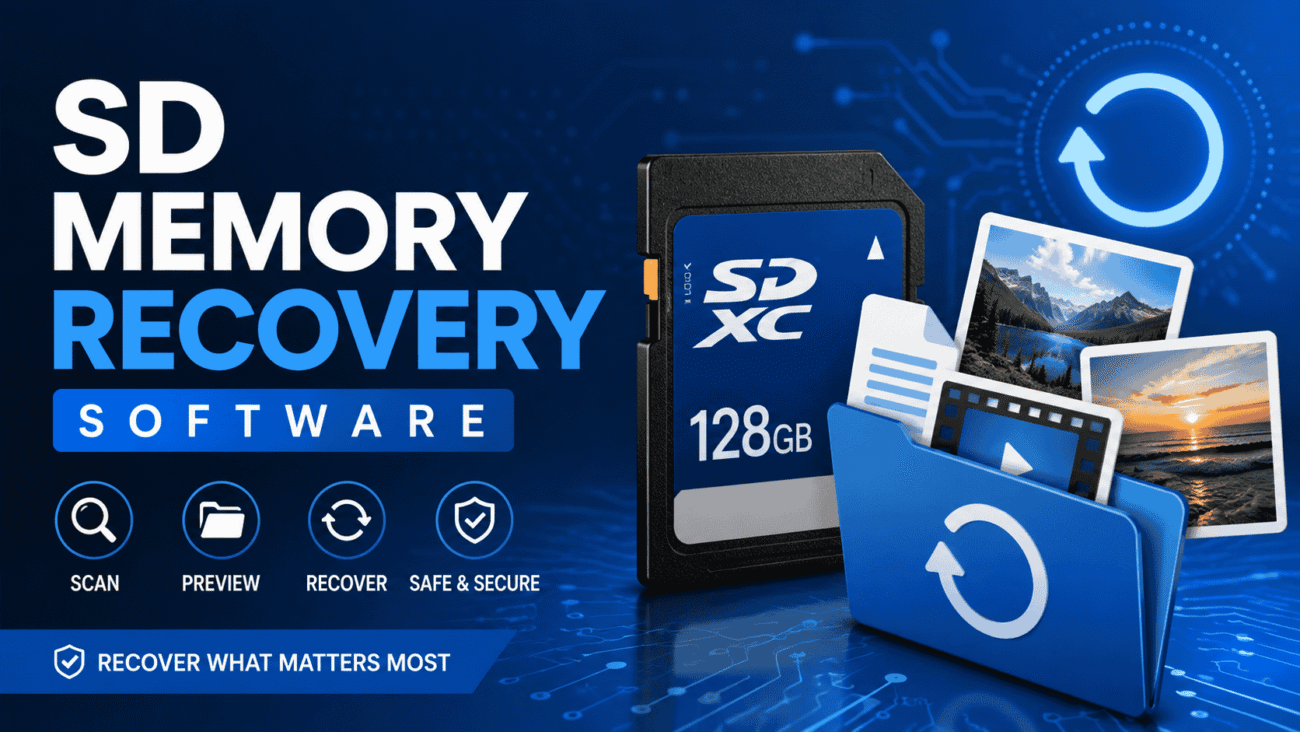
Losing photos, videos, or important documents from an SD card can be frustrating, especially when those files seem impossible to replace. The good news is that in many cases, deleted or inaccessible data isn’t gone forever. With the right SD memory recovery software, there’s a good chance you can recover your files—as long as you act quickly and avoid overwriting the card.
Whether you accidentally deleted vacation photos, formatted an SD card by mistake, or found that your camera suddenly can’t read the card, recovery software can often help. This guide explains how these tools work, what features matter most, and how to choose the right solution for your needs.
What Is SD Memory Recovery Software?
SD memory recovery software is a program designed to scan SD cards for deleted, lost, or corrupted files and restore them whenever possible.
When you delete a file from an SD card, the storage space is usually marked as available rather than being erased immediately. Recovery software searches for that remaining data and attempts to rebuild the original files before new data overwrites them.
Most recovery tools support:
- SD cards
- microSD cards
- SDHC cards
- SDXC cards
- Memory cards used in cameras, drones, phones, and gaming devices
The success of recovery depends on the condition of the card and whether new files have been saved since the data was lost.
When Should You Use SD Memory Recovery Software?
Many people think recovery software is only useful after accidentally deleting files, but it can help in several situations.
Accidental Deletion
This is the most common reason people use recovery software. If you emptied your camera or phone’s SD card by mistake, recovery is often possible if the card hasn’t been used afterward.
Formatted SD Cards
Formatting removes file references, but the actual data may remain until it’s overwritten.
A recovery scan may still locate photos, videos, and documents.
Corrupted File System
Sometimes an SD card suddenly asks to be formatted before it can be opened.
This often indicates file system corruption rather than complete data loss.
Virus or Malware Damage
Although less common, malware can hide or damage files stored on removable media.
Recovery software may help restore accessible data after the device has been cleaned.
Unexpected Power Loss
Removing an SD card while files are being written or losing power during recording can damage file structures.
Some recovery programs specialize in repairing partially corrupted files.
How SD Memory Recovery Software Works
Recovery software follows a series of steps to locate missing files.
Step 1: Scan the SD Card
The software examines every storage sector looking for recoverable information.
Most programs offer:
- Quick Scan
- Deep Scan
A quick scan searches recently deleted files, while a deep scan examines the entire storage structure for older or damaged data.
Step 2: Identify Recoverable Files
Once scanning finishes, the software organizes detected files into categories.
You may see:
- Photos
- Videos
- Audio
- Documents
- Archives
Many programs also display original folder structures if enough information remains.
Step 3: Preview Files
One of the most useful features is file preview.
Instead of recovering everything, users can inspect recoverable images or documents before restoring them.
This saves both time and storage space.
Step 4: Recover the Files
Recovered files should always be saved to another storage device—not back onto the original SD card.
Writing recovered data onto the same card could overwrite files that haven’t yet been recovered.
Common Causes of SD Card Data Loss
Understanding why data disappears can help prevent future problems.
Some of the most common causes include:
- Accidental deletion
- Formatting errors
- File system corruption
- Improper ejection
- Physical damage
- Power interruptions
- Virus infections
- Manufacturing defects
- Device compatibility issues
In many of these situations, recovery software can help if the memory card itself remains readable.
Features to Look for in SD Memory Recovery Software
Not every recovery program performs equally well.
Before downloading one, evaluate the features that will actually improve your chances of recovering important files.
Deep Scan Capability
Deep scanning takes longer but often discovers files that quick scans miss.
This feature is especially valuable for formatted or corrupted SD cards.
File Preview
Previewing files before recovery helps verify that they are usable.
This is particularly useful when recovering hundreds or thousands of photos.
Support for Multiple File Types
A good recovery tool should handle more than images.
Look for support for:
- JPEG
- PNG
- RAW camera files
- MP4
- MOV
- DOCX
- XLSX
- ZIP archives
Broader compatibility makes the software more versatile.
Read-Only Recovery
Quality recovery software performs scans without modifying the SD card.
This reduces the risk of making the problem worse.
Easy-to-Understand Interface
Recovery can already be stressful.
Simple navigation and clear instructions make the process much easier, especially for first-time users.
Compatibility
Check whether the software supports your operating system.
Many recovery tools work on:
- Windows
- macOS
Some also support Linux or mobile platforms.
Free vs. Paid SD Memory Recovery Software
Many users wonder whether free recovery software is enough.
The answer depends on the situation.
| Feature | Free Software | Paid Software |
|---|---|---|
| Basic Recovery | Yes | Yes |
| Deep Scan | Sometimes | Usually |
| File Preview | Limited | Yes |
| Large File Recovery | Limited | Better Support |
| Customer Support | Rare | Usually Included |
| Advanced Recovery Tools | Limited | More Comprehensive |
| Regular Updates | Varies | More Frequent |
For simple accidental deletions, a free tool may be sufficient.
If you’re recovering important business files or irreplaceable family photos, a paid solution often provides more advanced recovery options.
Types of SD Memory Recovery Software
Different programs focus on different recovery needs.
Consumer Recovery Software
Designed for home users recovering photos, videos, and documents.
These tools prioritize simplicity over advanced forensic capabilities.
Professional Recovery Software
Used by IT professionals and repair technicians.
They often include advanced scanning algorithms and support for damaged storage devices.
Photo Recovery Software
Some programs specialize in recovering images from digital cameras.
They support RAW photo formats produced by DSLR and mirrorless cameras.
Multi-Device Recovery Software
These applications recover data from:
- SD cards
- USB flash drives
- External hard drives
- Internal SSDs
- Traditional hard drives
They’re useful if you regularly work with different storage devices.
How to Choose the Right SD Memory Recovery Software
Before installing any recovery tool, consider your specific situation.
Ask yourself:
- Was the card accidentally deleted or physically damaged?
- Are you recovering photos, videos, or business documents?
- Do you need RAW image support?
- Is preview functionality important?
- Do you need customer support?
- Will you use the software more than once?
Choosing software based on your actual recovery needs usually produces better results than simply downloading the first option you find.
Recovering Files Yourself vs. Using a Professional Data Recovery Service
Not every SD card problem can be solved at home. While recovery software works well for many logical issues, physical damage often requires professional help.
The table below highlights the main differences.
| Recovery Method | Best For | Advantages | Limitations |
|---|---|---|---|
| SD Memory Recovery Software | Deleted, formatted, or corrupted files | Affordable, quick, easy to use | Cannot repair severe physical damage |
| Professional Recovery Service | Physically damaged or unreadable cards | Specialized equipment and expertise | More expensive and may take several days |
If your computer can still detect the SD card, recovery software is usually the first option worth trying. If the card isn’t recognized at all or has suffered water, heat, or impact damage, it’s safer to stop using it and consult a recovery specialist.
Pros and Cons of SD Memory Recovery Software
Like any software, recovery tools have strengths and limitations. Understanding both can help set realistic expectations.
Pros
- Can recover accidentally deleted files.
- Supports recovery from formatted SD cards in many cases.
- Saves time compared to manual recovery attempts.
- Usually offers a preview before recovery.
- Works with multiple file types and storage devices.
- Many programs are beginner-friendly.
- Costs far less than professional recovery services.
Cons
- Recovery is never guaranteed.
- Overwritten files usually cannot be restored.
- Free versions often have feature limitations.
- Physical damage requires specialized repair.
- Deep scans can take considerable time on larger cards.
Common Mistakes That Reduce Recovery Success
One of the biggest reasons recovery fails isn’t the software—it’s what users do after data loss.
Continuing to Use the SD Card
This is the most common mistake.
Every new photo, video, or file written to the card increases the chance of overwriting the missing data.
As soon as you notice data loss, stop using the card immediately.
Recovering Files Back to the Same Card
Always recover files to another storage location.
Saving recovered files back onto the original SD card may overwrite additional recoverable data.
Using Multiple Recovery Programs at Once
Running several recovery tools repeatedly can create confusion and waste time.
Instead, choose one reliable program, complete the scan, and review the results before trying another solution.
Ignoring Physical Damage
If the SD card is cracked, badly bent, or shows signs of electrical damage, avoid inserting it into different devices repeatedly.
Repeated attempts may make professional recovery more difficult.
Removing the Card Improperly
Always eject an SD card safely before removing it from a computer or camera.
Unexpected removal during file transfers can damage the file system.
Expert Tips for Better Recovery Results
Years of experience with digital storage have shown that a few simple habits can significantly improve the chances of recovering lost files.
Act Quickly
The sooner you begin recovery, the better your chances.
Waiting while continuing to use the SD card increases the risk of permanent data loss.
Create a Disk Image First
If your recovery software supports it, create a complete image of the SD card before attempting recovery.
This allows you to work from a copy instead of repeatedly scanning the original card.
Use a Reliable Card Reader
Sometimes the problem isn’t the SD card but the reader itself.
Testing with a high-quality card reader can rule out connection issues before assuming the card has failed.
Keep Multiple Backups
Recovery software is helpful, but backups are even better.
Important photos and documents should exist in at least two separate locations, such as an external drive and secure cloud storage.
Replace Aging Memory Cards
SD cards don’t last forever.
If you notice slow performance, frequent errors, or corrupted files, replacing the card early may prevent future data loss.
Real-World Example
Imagine you’re returning from a week-long vacation with hundreds of photos stored on your camera’s SD card. While transferring the images to your laptop, you accidentally select the wrong option and format the card.
Instead of taking more pictures or copying new files onto it, you remove the card immediately and connect it to your computer using a reliable card reader. After running SD memory recovery software, the program performs a deep scan and detects most of the deleted photos. You preview the images, recover them to your computer’s hard drive, and verify that the files open correctly before using the SD card again.
This scenario highlights why acting quickly and avoiding further writes to the card can make a significant difference.
Best Practices for Protecting Your SD Card
Although recovery software is valuable, prevention is always the better strategy.
Develop these habits to reduce the risk of future data loss:
- Back up important files regularly.
- Safely eject SD cards before removing them.
- Format cards using the device that will use them whenever possible.
- Avoid filling an SD card to its maximum capacity.
- Store memory cards in protective cases.
- Keep cards away from excessive heat, moisture, and magnets.
- Replace cards that show repeated errors.
- Use trusted brands for important work.
A few preventive steps today can save hours of recovery work later.
FAQs
1. Can SD memory recovery software recover permanently deleted files?
In many cases, yes. If the deleted files haven’t been overwritten by new data, recovery software may be able to restore them. However, success depends on the condition of the SD card and how much it has been used since the deletion.
2. Does formatting an SD card erase everything permanently?
Not always. A quick format usually removes file references rather than the actual data. Until new information is written to the card, recovery software may still find recoverable files.
3. Is free SD memory recovery software good enough?
Free tools can work well for simple recovery tasks, especially when files were deleted recently. More advanced cases, such as corrupted file systems or large storage devices, may benefit from paid software with additional features.
4. Can recovery software fix a physically damaged SD card?
No. Recovery software is designed to address logical data loss. If the card has physical damage or cannot be detected by a computer, professional data recovery services may be necessary.
5. What should I do immediately after losing files from an SD card?
Stop using the card right away, avoid saving new files to it, and begin the recovery process as soon as possible using reliable recovery software. This improves the likelihood of recovering your data.
Conclusion
SD memory recovery software offers a practical solution for recovering files lost due to accidental deletion, formatting, or file system corruption. While no recovery tool can guarantee success, choosing reliable software and acting quickly can significantly improve your chances of restoring valuable photos, videos, and documents.
The best approach is to stop using the SD card immediately after data loss, recover files to a different storage device, and maintain regular backups to avoid future problems. Whether you’re a photographer, student, traveler, or professional, understanding how recovery software works can help you respond confidently when unexpected data loss occurs.
