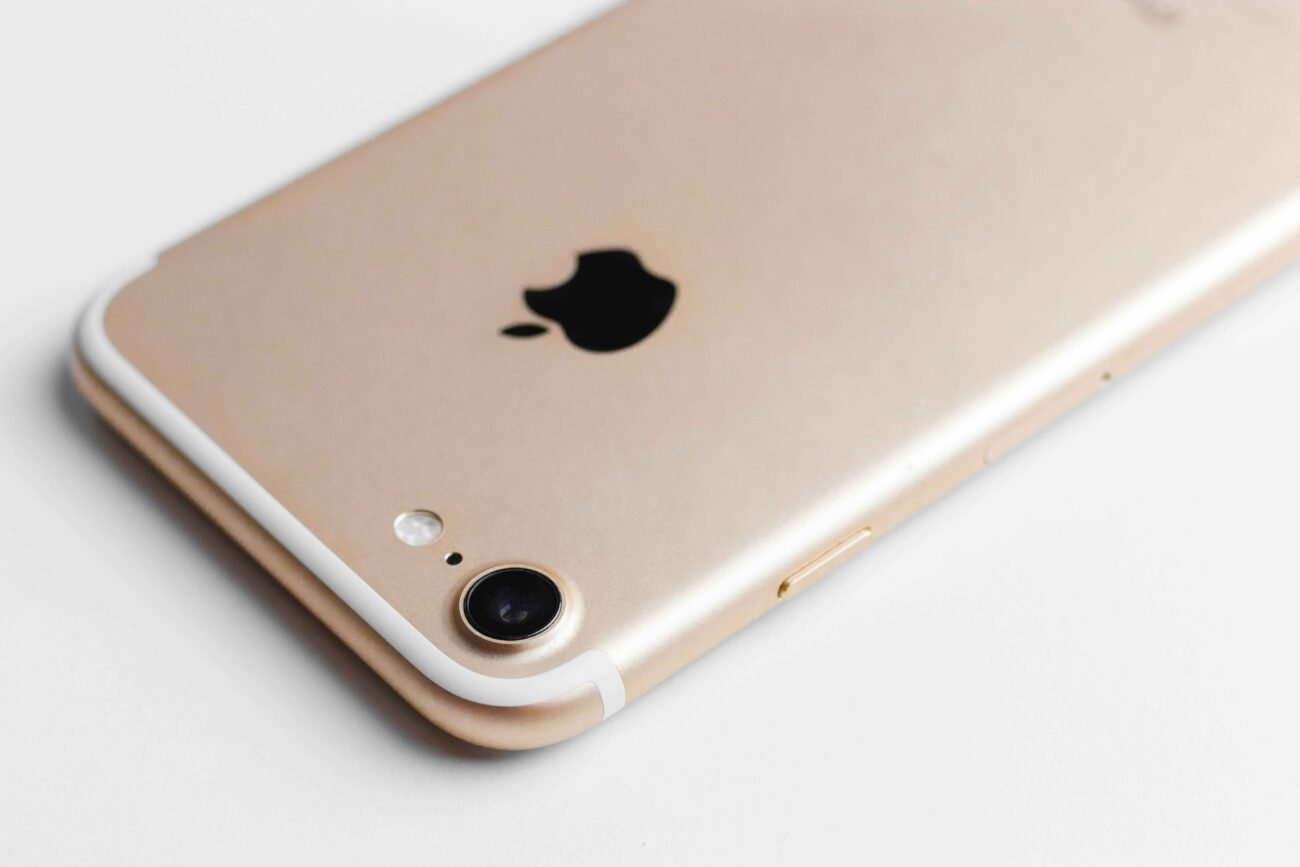
The phone flashlight is one of the most useful features available on modern smartphones. Whether you need light during a power outage, while searching for something in the dark, or when walking outside at night, your phone’s flashlight can be incredibly helpful.
Most smartphones today come with a built-in flashlight that uses the camera’s LED flash. This means you do not need to carry a separate torch or install an additional device. With just a few taps, you can instantly illuminate your surroundings.
However, many users still have questions about how to use this feature effectively. Some want to know how to turn on phone flashlight, while others struggle to turn off phone flashlight or deal with a phone flashlight not working problem.
In this guide, we will cover everything you need to know about phone flashlights, including how they work, how to use them, troubleshooting tips, and best practices.
What Is a Phone Flashlight?
A phone flashlight is a built-in feature that uses your smartphone’s camera flash LED to provide light.
Originally designed for photography, the camera flash has become powerful enough to function as a practical flashlight for everyday use.
Benefits of a Phone Flashlight
- Always available on your device
- No additional equipment required
- Easy to activate
- Useful during emergencies
- Energy-efficient LED lighting
- Available on both Android and iPhone devices
Because smartphones are usually within reach, the flashlight has become one of the most frequently used phone features.
How Does a Phone Flashlight Work?
The flashlight uses the LED (Light Emitting Diode) located next to your phone’s camera.
When activated:
- The operating system sends a signal to the LED.
- The LED receives power from the battery.
- The light remains on until manually switched off.
Unlike traditional flash photography, the flashlight mode keeps the LED illuminated continuously.
Components Involved
| Component | Function |
|---|---|
| LED Flash | Produces light |
| Battery | Powers the flashlight |
| Operating System | Controls flashlight functions |
| Control Panel | Allows user access |
Why People Use Phone Flashlights
Phone flashlights serve many practical purposes.
Common Uses
- Finding lost items under furniture
- Walking in dark areas
- Emergency lighting during outages
- Reading in low-light conditions
- Vehicle inspections
- Camping and outdoor activities
- Unlocking doors at night
Because of its convenience, the flashlight is one of the most valuable smartphone tools.
How to Turn On Phone Flashlight
Many users wonder how to turn on phone flashlight quickly.
The process varies slightly between devices but follows similar steps.
On Android Devices
Method 1: Quick Settings
- Unlock your phone.
- Swipe down from the top of the screen.
- Locate the Flashlight icon.
- Tap it once.
The flashlight should turn on immediately.
Method 2: Voice Commands
If Google Assistant is enabled:
- Say “Hey Google.”
- Say “Turn on flashlight.”
The flashlight will activate automatically.
On iPhone Devices
Using Control Center
- Swipe down from the top-right corner.
- Find the flashlight icon.
- Tap the icon.
The flashlight will switch on instantly.
Using Siri
You can simply say:
“Hey Siri, turn on the flashlight.”
Siri will handle the task for you.
How to Turn Off Phone Flashlight
After using the light, it is important to turn off phone flashlight to preserve battery life.
Android Phones
Quick Settings Method
- Swipe down from the top.
- Tap the flashlight icon again.
The light will immediately switch off.
Voice Command Method
Say:
“Hey Google, turn off the flashlight.”
iPhone Devices
Control Center
- Open Control Center.
- Tap the flashlight icon.
The flashlight will turn off.
Siri Command
Simply say:
“Hey Siri, turn off the flashlight.”
Phone Flashlight Not Working: Common Causes
Sometimes users encounter a phone flashlight not working issue.
Several factors may cause this problem.
Camera App Is Active
Many phones prevent flashlight use while the camera is operating.
Solution
- Close the camera app completely.
- Try turning on the flashlight again.
Low Battery Mode
Certain devices disable flashlight functionality when battery levels are critically low.
Solution
- Charge your device.
- Disable battery-saving mode if necessary.
Software Bugs
Temporary software glitches may affect flashlight operation.
Solution
- Restart your smartphone.
- Check for system updates.
Hardware Problems
Physical damage can affect the LED flash.
Possible Signs
- Flashlight never turns on
- Camera flash also fails
- LED appears damaged
Professional repair may be necessary.
How to Fix a Phone Flashlight Not Working
If your flashlight refuses to work, try these troubleshooting steps.
Restart Your Phone
A simple reboot often resolves temporary issues.
Steps
- Turn off the phone.
- Wait 30 seconds.
- Restart the device.
- Test the flashlight.
Check Software Updates
Manufacturers regularly release bug fixes.
Steps
- Open Settings.
- Select Software Update.
- Install available updates.
Clear Camera App Cache
Android users can clear cached data.
Steps
- Open Settings.
- Tap Apps.
- Select Camera.
- Clear Cache.
Reset Settings
If the issue persists:
- Open Settings.
- Choose Reset Settings.
- Follow instructions carefully.
This may solve flashlight-related software conflicts.
Comparing Flashlight Controls Across Devices
| Feature | Android | iPhone |
| Quick Access | Yes | Yes |
| Voice Commands | Google Assistant | Siri |
| Brightness Control | Some models | Most models |
| Lock Screen Access | Often available | Available |
| Third-Party Apps | Supported | Supported |
Best Practices for Using Your Phone Flashlight
Using your flashlight correctly helps improve battery life and device performance.
Recommended Practices
- Turn it off when not needed
- Avoid excessive use
- Keep software updated
- Avoid using unreliable flashlight apps
- Monitor battery consumption
These habits help maintain both battery health and flashlight functionality.
Battery Usage and Flashlight Performance
Many users wonder whether flashlights drain batteries quickly.
The answer depends on usage duration.
Estimated Battery Impact
| Usage Time | Battery Consumption |
| 5 Minutes | Very Low |
| 15 Minutes | Low |
| 30 Minutes | Moderate |
| 1 Hour | Noticeable |
| Several Hours | Significant |
Although LEDs are energy efficient, continuous use can still reduce battery life.
Flashlight Apps vs Built-In Flashlights
Most phones already include a flashlight feature.
However, many flashlight apps are available.
Built-In Flashlight Advantages
- Safe and secure
- No advertisements
- No extra permissions
- Better battery optimization
Third-Party App Advantages
- Additional lighting effects
- Strobe modes
- SOS signaling features
For most users, the built-in flashlight is sufficient.
Safety Tips When Using a Phone Flashlight
Although flashlights are safe, some precautions are important.
Do Not
- Shine directly into someone’s eyes
- Use continuously in extreme heat
- Leave the flashlight running unattended
Do
- Turn it off after use
- Keep your battery charged
- Use it responsibly during emergencies
Future of Smartphone Flashlights
Smartphone flashlights continue to improve.
Future developments may include:
- Brighter LEDs
- Improved battery efficiency
- Adjustable color temperatures
- Smart emergency lighting features
- AI-powered brightness control
As smartphones become more advanced, flashlight technology will likely improve as well.
FAQs About Phone Flashlight
How do I turn on phone flashlight?
Open Quick Settings on Android or Control Center on iPhone and tap the flashlight icon.
How do I turn off phone flashlight?
Tap the flashlight icon again or use voice commands through Google Assistant or Siri.
Why is my phone flashlight not working?
Common causes include software bugs, low battery, active camera apps, or hardware damage.
Can a flashlight drain my battery?
Yes. Extended flashlight use consumes battery power, although LED lights are relatively energy efficient.
Is it safe to use flashlight apps?
Built-in flashlight tools are generally safer because they do not require additional permissions.
Can I use voice commands to control my flashlight?
Yes. Both Google Assistant and Siri support flashlight commands.
Conclusion
The phone flashlight is one of the most practical smartphone features available today. It provides instant lighting whenever you need it and eliminates the need to carry a separate flashlight.
Learning how to turn on phone flashlight and turn off phone flashlight can make daily tasks easier, while understanding how to troubleshoot a phone flashlight not working issue helps ensure the feature remains reliable.
Whether you use an Android phone or an iPhone, the flashlight is a simple yet powerful tool that can assist you in emergencies, outdoor activities, and everyday situations. By following the tips and solutions in this guide, you can get the most out of your smartphone flashlight while preserving battery life and maintaining device performance.
