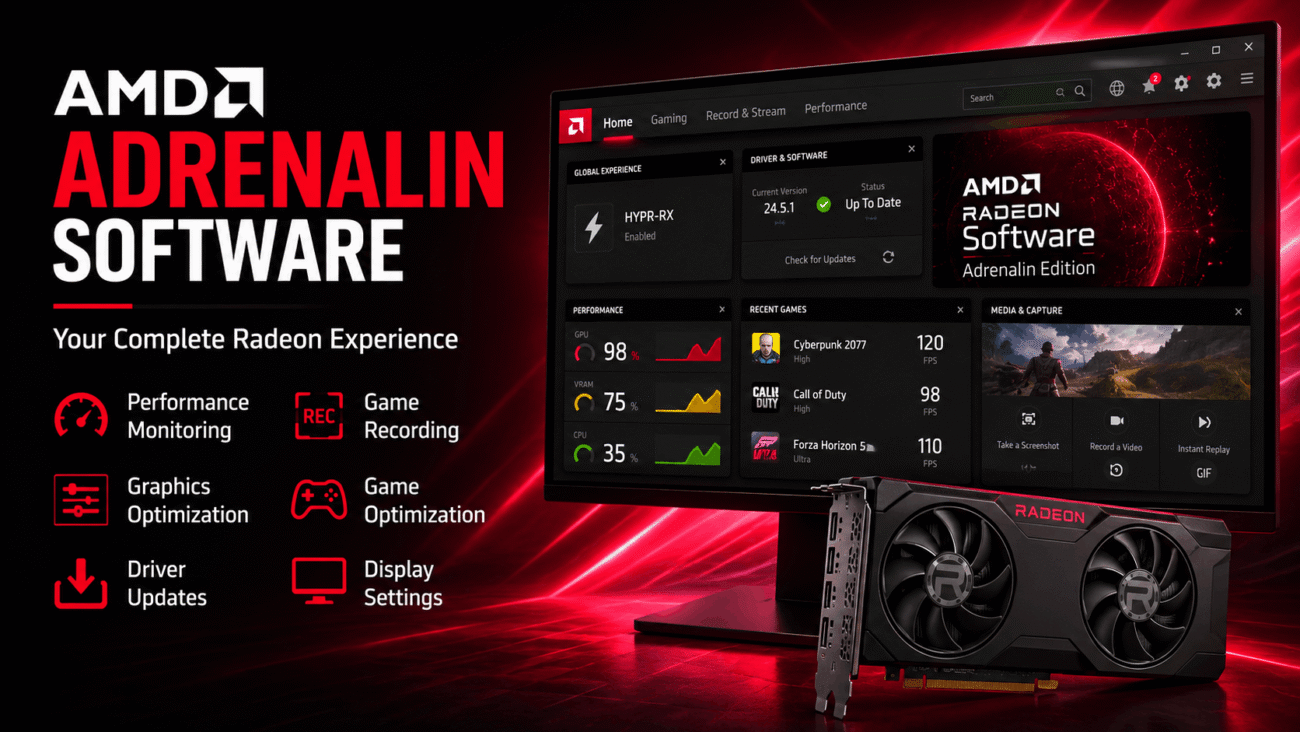
Installing a graphics card is only part of getting the best performance from your PC. To unlock its full potential, you also need the right software. For AMD GPU users, that software is AMD Adrenalin Software.
More than just a graphics driver, AMD Adrenalin Software is a complete management suite that helps you update drivers, optimize games, monitor system performance, record gameplay, and customize your graphics settings—all from one dashboard.
Whether you’re building your first gaming PC, editing videos, or simply looking for smoother gameplay, understanding how AMD Adrenalin Software works can help you get more from your hardware.
This guide explains what AMD Adrenalin Software is, its major features, supported hardware, benefits, limitations, and best practices for using it effectively.
What Is AMD Adrenalin Software?
AMD Adrenalin Software is the official graphics driver and control software developed for AMD Radeon graphics cards and compatible processors with Radeon graphics.
While graphics drivers allow your operating system to communicate with your GPU, Adrenalin goes much further by offering a complete suite of performance, gaming, streaming, and system management tools.
Instead of installing several different applications, users can control nearly every aspect of their AMD graphics hardware from a single interface.
The software supports a wide variety of activities, including:
- Gaming optimization
- Driver management
- Performance monitoring
- Graphics customization
- Game recording
- Streaming
- Display configuration
- Performance tuning
Because of its broad feature set, AMD Adrenalin Software has become an essential application for many Radeon users.
Why Do AMD Users Install Adrenalin Software?
Every graphics card requires drivers, but AMD Adrenalin Software offers much more than basic driver support.
It helps users improve gaming performance, manage updates, monitor temperatures, adjust graphics settings, and troubleshoot issues without relying on third-party utilities.
Some of the most common reasons people install it include:
- Keeping graphics drivers updated
- Improving game performance
- Recording gameplay
- Monitoring GPU usage
- Optimizing display settings
- Adjusting fan and power settings
- Enabling advanced Radeon technologies
For many users, it becomes the control center for their entire graphics experience.
How AMD Adrenalin Software Works
Although the software contains many advanced features, its daily workflow is straightforward.
Step 1: Install the Software
After downloading the latest version from AMD’s official website, the installer detects compatible hardware and installs both the graphics driver and the Adrenalin control panel.
Once installed, the software becomes the primary interface for managing your Radeon graphics card.
Step 2: Detect Hardware
At launch, the software automatically identifies supported hardware.
Depending on your system, it may display:
- Graphics card model
- Driver version
- Monitor information
- Refresh rate
- GPU temperature
- VRAM usage
This overview provides a quick snapshot of your graphics setup.
Step 3: Configure Graphics Settings
Users can adjust numerous graphics options based on their needs.
Examples include:
- Radeon Anti-Lag
- Radeon Boost
- Image Sharpening
- Vertical Sync
- Frame Rate Target Control
- Color adjustments
Different games may benefit from different settings, allowing users to balance image quality and performance.
Step 4: Optimize Games
The Gaming section automatically detects installed games.
From there, users can create individual profiles with customized graphics settings for each title.
For example, competitive games may prioritize higher frame rates, while story-driven games may focus on visual quality.
Step 5: Monitor Performance
One of the most useful features is the built-in performance overlay.
Users can monitor:
- GPU utilization
- GPU temperature
- CPU usage
- Memory usage
- Frame rate (FPS)
- Fan speed
- Power consumption
This real-time information helps identify performance bottlenecks during gaming sessions.
Key Features of AMD Adrenalin Software
AMD continues expanding the software with new capabilities designed for gamers, creators, and everyday PC users.
Automatic Driver Updates
Keeping graphics drivers current helps improve compatibility with newly released games and software.
Adrenalin can notify users when new drivers become available, making updates much easier to manage.
Game Optimization
The software allows users to create custom graphics profiles for individual games.
Instead of applying one global setting, each game can have its own performance configuration.
This flexibility helps maximize both performance and visual quality.
Performance Metrics
Built-in monitoring tools provide valuable information without requiring separate applications.
Users can track:
- Frame rate
- GPU load
- VRAM usage
- CPU usage
- Temperatures
- Clock speeds
These statistics are especially useful when troubleshooting performance issues.
Radeon Anti-Lag
Input delay can affect competitive gaming.
Radeon Anti-Lag helps reduce latency by improving communication between the CPU and GPU, making gameplay feel more responsive in supported scenarios.
Radeon Image Sharpening
Lower graphics settings can sometimes produce softer images.
Image Sharpening enhances visual clarity with minimal impact on performance, making games appear crisper on many supported systems.
Screen Recording and Streaming
AMD Adrenalin Software also includes built-in recording tools.
Users can:
- Capture gameplay
- Record desktop activity
- Stream supported content
- Take screenshots
For casual creators, these built-in features often eliminate the need for additional recording software.
Supported Hardware
AMD Adrenalin Software supports a wide range of AMD products.
| Hardware | Supported |
|---|---|
| Radeon Graphics Cards | Yes |
| Radeon RX Series | Yes |
| Radeon Pro (selected versions) | Limited |
| AMD APUs with Radeon Graphics | Yes |
| Windows PCs | Yes |
| Linux | Separate driver packages available |
Always verify compatibility on AMD’s official website before installing, especially if you’re using older graphics hardware.
Real-World Example
Imagine you’ve just installed a new Radeon RX graphics card to play the latest PC games.
Without AMD Adrenalin Software, the card will function, but you won’t have easy access to performance tuning, driver updates, frame rate monitoring, or gaming optimizations.
After installing Adrenalin, you create custom profiles for your favorite games. Competitive shooters are configured for maximum FPS, while visually demanding adventure games prioritize image quality. During gameplay, the performance overlay lets you monitor GPU temperatures and frame rates in real time, helping you fine-tune settings for the best possible experience.
This combination of driver management, performance monitoring, and customization is what makes AMD Adrenalin Software such a valuable tool for many Radeon users.
Advantages of AMD Adrenalin Software
AMD Adrenalin Software offers much more than routine driver updates. It gives users greater control over their graphics hardware while making everyday tasks easier to manage.
Centralized Control
Instead of installing several separate utilities, you can manage most GPU-related settings from one application.
Driver updates, gaming profiles, display settings, recording tools, and performance monitoring are all available through a single dashboard.
This streamlined approach saves time and reduces the need for third-party software.
Better Gaming Performance
Many users install Adrenalin primarily for gaming.
Features like Radeon Anti-Lag, Radeon Super Resolution, Radeon Boost (on supported hardware), and custom graphics profiles help optimize gameplay for different titles.
While results vary depending on the game and hardware, these tools allow users to fine-tune performance based on their preferences.
Easy Driver Management
Keeping graphics drivers current is important for stability, compatibility, and support for newly released games.
Adrenalin notifies users when new drivers become available and simplifies the installation process.
Updating through the software is usually much easier than manually searching for drivers online.
Built-in Performance Monitoring
Understanding how your system performs can help troubleshoot issues before they become serious.
The Performance tab provides useful information such as:
- GPU utilization
- GPU temperature
- CPU usage
- Memory consumption
- Fan speed
- Power usage
- Frames per second (FPS)
This information is especially useful when diagnosing overheating or unexpected performance drops.
Recording and Streaming Features
Content creators and casual gamers can record gameplay without installing separate recording applications.
The built-in capture tools allow users to:
- Record gameplay sessions
- Capture screenshots
- Save instant replays
- Stream supported content
Having these features integrated into the graphics software creates a smoother workflow.
Limitations of AMD Adrenalin Software
Although Adrenalin is a powerful application, it’s not without drawbacks.
Understanding these limitations helps users decide how to configure their systems.
Advanced Features Require Learning
Basic tasks such as updating drivers are straightforward.
However, advanced tuning options—including voltage adjustments, fan curves, and overclocking—require a better understanding of PC hardware.
Making incorrect changes may reduce stability or increase temperatures.
Compatibility Depends on Hardware
Not every AMD graphics card supports every feature.
Some technologies are available only on newer Radeon GPUs or specific driver versions.
Checking hardware compatibility before enabling advanced features is always recommended.
Driver Updates May Occasionally Introduce Issues
Like any major software update, new graphics drivers can sometimes introduce unexpected bugs or compatibility problems.
If your PC is running well, many experienced users prefer reading release notes before installing every new update, particularly on production or work systems.
AMD Adrenalin Software vs. NVIDIA GeForce Experience
Many PC users compare AMD Adrenalin Software with NVIDIA’s GeForce Experience because both provide graphics management tools.
While each platform is designed for different hardware, their overall goals are similar.
| Feature | AMD Adrenalin Software | NVIDIA GeForce Experience |
|---|---|---|
| Driver Updates | Yes | Yes |
| Performance Monitoring | Built In | Limited (with overlays) |
| Gameplay Recording | Yes | Yes |
| Game Optimization | Yes | Yes |
| GPU Tuning | Extensive | More Limited |
| Display Configuration | Comprehensive | Basic |
| Hardware Support | AMD Radeon GPUs | NVIDIA GeForce GPUs |
If you own an AMD graphics card, Adrenalin is the natural choice because it’s designed specifically for Radeon hardware and exposes features unique to AMD’s graphics ecosystem.
Best Practices for Using AMD Adrenalin Software
Installing the software is only the beginning. Following a few good habits can help improve stability and performance over the long term.
Keep Drivers Updated
Driver updates often include:
- Game optimizations
- Security improvements
- Bug fixes
- Performance enhancements
Before installing a new driver, it’s helpful to review the release notes to see what changes have been made.
Create Game Profiles
Different games place different demands on your graphics hardware.
Rather than using one global configuration, create individual profiles for your favorite games.
For example:
- Competitive games can prioritize high frame rates.
- Single-player games may focus on image quality.
- Older games may run well using lower power settings.
Monitor System Temperatures
High temperatures can reduce performance and shorten hardware lifespan.
Use the built-in monitoring tools to keep an eye on:
- GPU temperature
- Hotspot temperature (if supported)
- Fan speed
- Power consumption
If temperatures remain unusually high, check airflow, clean dust filters, or inspect cooling components.
Back Up Important Settings
If you spend time customizing game profiles or tuning your GPU, consider saving your configuration whenever possible.
Having a backup makes it easier to restore preferred settings after reinstalling Windows or updating hardware.
Common Mistakes Users Make
Even experienced PC users occasionally overlook simple issues that affect performance.
Ignoring Driver Updates
Outdated drivers may cause compatibility problems with newer games or software.
While updating immediately isn’t always necessary, staying reasonably current is a good practice.
Overclocking Too Aggressively
Increasing GPU clock speeds without proper testing can lead to crashes, graphical artifacts, or overheating.
Any performance tuning should be done gradually, with careful stability testing after each adjustment.
Running Too Many Background Applications
Streaming software, web browsers, and unnecessary startup programs consume valuable system resources.
Closing unused applications before gaming can improve overall performance, especially on systems with limited memory.
Forgetting to Monitor Temperatures
Performance problems aren’t always caused by the graphics card itself.
Dust buildup, poor airflow, or failing cooling fans can all contribute to higher temperatures and reduced performance.
Checking temperature readings regularly helps identify these issues early.
Expert Tips for Better Performance
Experienced PC builders often follow a few simple habits that improve long-term system stability.
Consider these recommendations:
- Download drivers only from AMD’s official website.
- Update your motherboard chipset drivers alongside GPU drivers when appropriate.
- Clean dust from your PC regularly.
- Maintain good airflow inside the computer case.
- Test graphics settings before competitive gaming sessions.
- Restart your computer after major driver installations.
- Keep Windows updated to maintain compatibility with newer graphics drivers.
These practices won’t magically increase frame rates, but they can contribute to a smoother and more reliable gaming experience.
Real-World Scenario
Imagine you’re preparing for the release of a new AAA game.
Before launch day, AMD releases a graphics driver optimized for that title.
After updating through Adrenalin Software, you create a custom game profile with Radeon Anti-Lag enabled and adjust graphics settings to balance image quality and frame rate.
While playing, the performance overlay shows that your GPU temperature remains within a safe range and your frame rate stays consistent.
Instead of guessing how your system is performing, you have real-time information that helps you make informed adjustments for the best gaming experience.
FAQs
1. What is AMD Adrenalin Software used for?
AMD Adrenalin Software is the official software suite for AMD Radeon graphics cards and compatible processors with Radeon graphics. It allows users to install graphics drivers, optimize games, monitor system performance, customize display settings, record gameplay, and manage GPU features from a single application.
2. Is AMD Adrenalin Software free?
Yes. AMD provides Adrenalin Software as a free download for supported AMD hardware. There are no subscription fees to install drivers or use its core features.
Always download the latest version from AMD’s official website to ensure you receive genuine software and the newest updates.
3. Can AMD Adrenalin Software improve gaming performance?
It can help optimize your gaming experience, but the results depend on your hardware, game settings, and the specific title you’re playing.
Features such as Radeon Anti-Lag, Radeon Super Resolution, custom game profiles, and driver updates may improve responsiveness or visual quality on supported systems. Users should review AMD’s latest documentation to understand which features are available for their GPU.
4. Do I need AMD Adrenalin Software if Windows installs a driver automatically?
Windows can install a basic graphics driver that allows your display to function, but it doesn’t always include the latest optimizations or advanced Radeon features.
Installing AMD Adrenalin Software provides access to performance tuning, game optimization, recording tools, driver management, and other features not available through standard Windows drivers.
5. Is AMD Adrenalin Software safe to install?
Yes, when downloaded from AMD’s official website. Installing software from trusted sources helps reduce the risk of security issues or modified files.
Before updating, it’s also a good idea to review the release notes, especially if your system is working well and you rely on it for work or professional content creation.
Conclusion
AMD Adrenalin Software has grown far beyond a simple graphics driver. It serves as a complete control center for Radeon graphics cards, giving users access to driver updates, performance monitoring, gaming optimizations, display settings, recording tools, and hardware tuning in one place.
For gamers, it offers features that make it easier to balance performance and image quality across different titles. For creators and everyday PC users, it provides convenient tools for managing graphics hardware without needing several separate applications.
Like any powerful software, getting the best results requires more than installing it once. Keeping drivers up to date, monitoring system temperatures, creating custom game profiles, and understanding your hardware can all contribute to a smoother and more reliable experience.
If you’re using a supported AMD graphics card, AMD Adrenalin Software is one of the most valuable tools you can install. Combined with good system maintenance and sensible performance tuning, it helps you get the most out of your Radeon hardware while keeping your PC ready for the latest games and applications.
