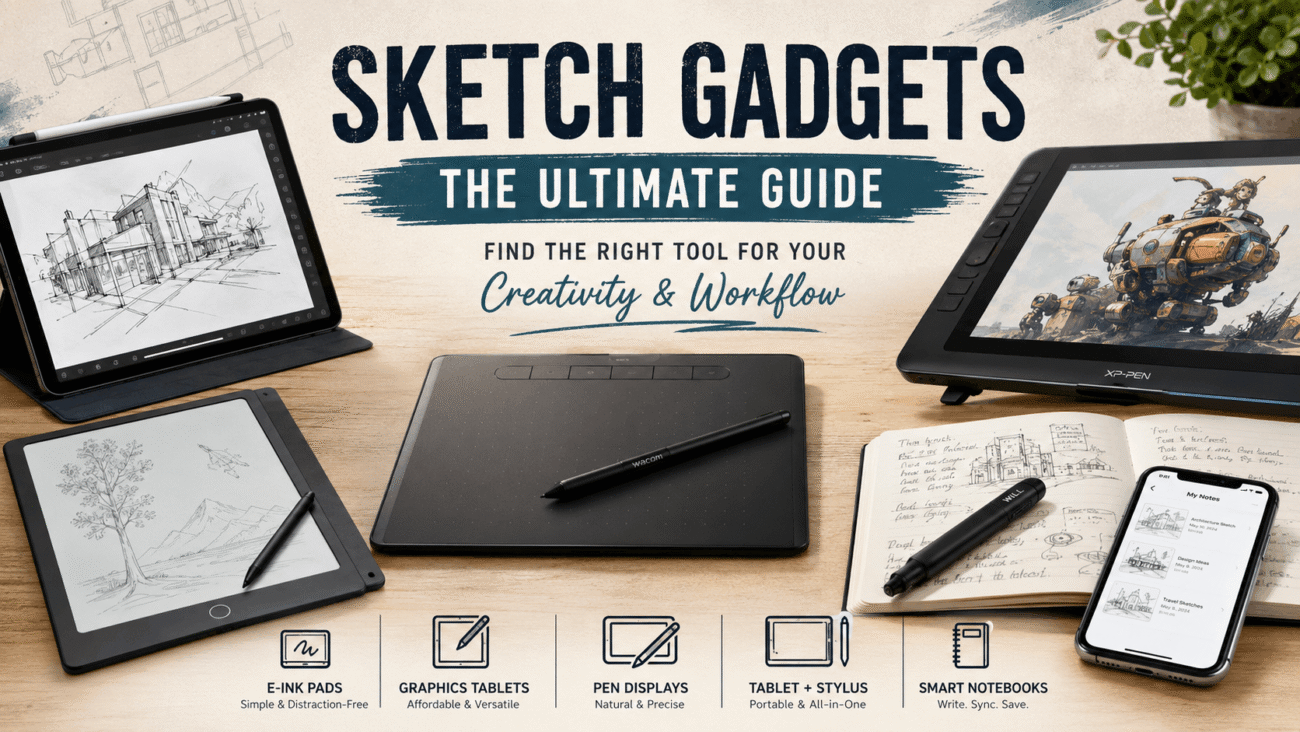
My first digital drawing tablet sat in a drawer for two months before I touched it again. Not because it was broken. Because I plugged it in, drew a wobbly circle, watched the line appear three inches from where my hand actually was, and thought, nope, not today. It took a rainy weekend and a lot of stubbornness before it finally clicked. That gap between what a sketch gadgets promises on the box and what it feels like in your hand is the whole reason this guide exists.
So if you’re standing in front of a wall of options right now — tablets, pen displays, e-ink pads, all claiming to be the one you need — here’s the honest version. No spec-sheet worship, no pretending every device is perfect for everyone. Just what actually matters once you’re the one holding the stylus.
What Counts as a Sketch Gadgets?
People throw this term around loosely, and honestly, it covers more ground than most buying guides admit.
- Standalone e-ink sketch pads (think Boogie Board, or the reMarkable-style devices)
- Graphics tablets that plug into a computer, no screen of their own (classic Wacom Intuos territory)
- Pen displays with a built-in screen you draw directly onto (Wacom Cintiq, XP-Pen Artist, that sort of thing)
- Tablet-and-stylus combos, like an iPad with an Apple Pencil or a Galaxy Tab with an S Pen
- Smart notebooks that turn handwritten sketches into digital files
Here’s the thing nobody tells you upfront: these five categories solve five different problems. A device built for jotting quick doodles on the couch has almost nothing in common with one built for finishing client illustrations. Mixing those two up is, in my experience, the number one reason people end up disappointed with a gadget that’s actually perfectly good — just wrong for them.
How to Choose the Right One for You
Before you even glance at a product page, sit with a few honest questions. I’ve watched friends drop $400 on a pen display when a $60 notepad would’ve covered everything they actually needed.
Ask Yourself These Questions First
Are you sketching for fun, or is this feeding into real, paid work? Someone doodling on a lunch break has completely different priorities than a concept artist whose client is waiting on final files by Friday.
Do you need your line to appear exactly where your pen touches? This, more than anything else, is the deciding factor. Non-screen tablets — the classic Wacom Intuos style — make you look at a separate monitor while your hand moves on a flat pad somewhere else. It’s a strange feeling at first, kind of like using a mouse without ever glancing down at your hand. Screen tablets and pen displays skip that disconnect entirely, which is exactly why so many people gravitate toward them once they’ve tried both.
How much desk space, and how much budget, do you actually have? Pen displays eat up desk real estate and cost more. A tablet-and-stylus setup, an iPad especially, travels light and doubles as a regular tablet the moment you’re done sketching.
Comparison Table: Popular Sketch Gadgets Types
| Device Type | Best For | Learning Curve | Typical Price Range | Portability |
|---|---|---|---|---|
| E-ink sketch pad | Quick notes, distraction-free doodling | Low | $30–$150 | Very high |
| Non-screen graphics tablet | Budget digital art, students | High | $50–$400 | Medium |
| Pen display (screen tablet) | Professional illustration, animation | Medium | $250–$2,000+ | Low to medium |
| Tablet + stylus (iPad, Galaxy Tab) | All-purpose sketching, casual to semi-pro | Low to medium | $300–$1,300+ | High |
| Smart notebook | Digitizing handwritten sketches | Low | $25–$120 | High |
Prices move around constantly with sales and new releases, so treat these as a ballpark and check current listings before you buy anything.
A Closer Look at Each Category
E-Ink Sketch Pads
These are about as simple as sketch gadgets get. Draw with a plastic stylus on a pressure-sensitive screen, the lines show up instantly in dark strokes against a pale background, and one button wipes it all clean.
I keep one sitting on my kitchen counter, mostly for grocery lists and rough thumbnail sketches when an idea hits mid-cooking. No file saving to worry about, no battery anxiety after an hour of use, no glare fighting me under the kitchen lights.
The catch: most of the cheaper models can’t actually save what you draw. Want to keep the sketch around? You’ll need a version with app connectivity, and that bumps the price up fast.
Non-Screen Graphics Tablets
A lot of digital artists cut their teeth here, mostly because of the price tag. You get a flat pad, a stylus, a cable to your laptop or desktop, and your lines land on the monitor instead of the surface under your hand.
I won’t sugarcoat the learning curve. It’s real, and it’s a little humbling. Your brain has to rewire itself for hand-eye coordination that splits in two directions at once. Most people find their footing within a week or two of steady practice, but those first few days can feel genuinely frustrating — like relearning how to write with your non-dominant hand.
Real-world example: A friend of mine freelances in logo design and still reaches for her small non-screen tablet for rough concept sketches. Not because it’s flashy, but because it’s lighter on her wrists during marathon sessions than tilting her head down at a screen tablet for hours.
Pen Displays (Screen Tablets)
Out of everything on this list, these come closest to the feel of actual paper. You draw right on the screen, and the software responds directly under your pen tip, no detour through a separate monitor.
It’s easy to see why professional illustrators, comic artists, and animators tend to favor these — the visual feedback just matches how drawing is supposed to feel. That said, they bring their own learning curve. Parallax, that small visual gap between where the pen touches and where the line actually renders, can throw you off until your eyes adjust. And the higher-end models want a genuinely capable computer behind them, not an aging laptop wheezing along.
Tablet and Stylus Combos
An iPad paired with an Apple Pencil, or a Galaxy Tab with an S Pen, sits right at the intersection of dedicated art tool and everyday gadget. Sketch for twenty minutes, then check email on the same screen without missing a beat.
That flexibility is the whole appeal, but it cuts both ways. If notifications pull you out of focus easily — and let’s be honest, most of us are guilty of this — a single-purpose device might actually serve your sketching habit better than a multitasking one.
Smart Notebooks
These sit somewhere between old-school paper sketching and modern digital storage. You draw with a special pen on textured paper, and an app quietly scans or syncs the sketch to the cloud behind the scenes.
They’re a favorite among people who love the tactile feel of pen on paper but still want their work searchable and backed up somewhere safe. The tradeoff is that you’re locked into a proprietary pen and paper refill system, and that recurring cost sneaks up on people who didn’t budget for it upfront.
Pros and Cons at a Glance
Non-screen tablets
- Pro: The most affordable way into digital art
- Pro: Light enough to toss in a bag without thinking twice
- Con: Steep learning curve for anyone starting fresh
- Con: Requires a separate monitor setup to work at all
Pen displays
- Pro: Drawing feels natural and direct
- Pro: The go-to choice for working professionals
- Con: Pricey, especially once you size up
- Con: Needs real desk space, often a dedicated stand too
Tablet-and-stylus combos
- Pro: One device doing double duty, not just an art tool
- Pro: Genuinely portable
- Con: Distraction risk is higher than with dedicated devices
- Con: App ecosystems can quietly limit which art software you’re allowed to install
Common Mistakes People Make
Buying the most expensive option first. I’ve done this myself, and I regretted it. A beginner doesn’t need a top-tier pen display just to figure out whether digital sketching is even something they’ll stick with. Start small. Upgrade later, once you actually know your own habits.
Ignoring pressure sensitivity levels. Budget stylus pens sometimes support far fewer pressure levels than the marketing bundle implies. If shading and line weight matter to your style — and for most artists, they do — this is worth digging into before you buy, not after you’re already frustrated with flat, lifeless lines.
Skipping the software question entirely. A gadget is only half the story. Certain devices play nicely with specific apps and not others, and not every drawing program runs on every platform. Check compatibility with whatever software you actually plan to use, not just whatever the store bundles in.
Assuming bigger is automatically better. A sprawling pen display looks impressive in photos, but if your desk is cramped or you travel a lot, a compact 10 to 13-inch screen will probably get used far more consistently than a giant one gathering dust in a closet.
Not testing tilt and palm rejection. Some cheaper tablets don’t reliably sense when your palm rests on the screen, so you end up with stray marks ruining a sketch. It’s one of those flaws you won’t notice in a store demo — only mid-drawing, when it’s already annoying.
Expert Tips From Years of Trial and Error
Don’t judge a device until you’ve adjusted the pen pressure settings. Most gadgets ship with default sensitivity curves that feel either way too light or way too heavy out of the box. Five minutes in a settings menu can completely transform how a tablet feels under your hand.
If a pen display’s glass feels slippery, throw on a matte screen protector. It cuts glare too, and honestly gets you closer to that paper-like texture people miss when they first switch from sketchbooks.
Keep a spare stylus nib in a drawer somewhere. They wear down faster than you’d think, especially if you draw with a heavier hand like I do.
And if you’re moving from paper to digital, give yourself at least two weeks of regular practice before deciding a device “isn’t for you.” That awkward adjustment period is completely normal. It doesn’t mean you bought the wrong gadget — it usually just means you’re still learning it.
FAQs About Sketch Gadgets
Are sketch gadgets good for beginners who have never drawn digitally before?
Yes, though I’d steer a total beginner toward an affordable non-screen tablet or a basic e-ink pad before jumping straight into a high-end pen display. It lets you learn the fundamentals without a big financial risk hanging over the decision.
Do I need a powerful computer to use a graphics tablet?
For most non-screen tablets, a standard laptop handles it fine. Pen displays with higher resolution or faster refresh rates can be more demanding on your machine, so it’s worth double-checking the manufacturer’s minimum system requirements before you commit.
Can I use a sketch gadgets without any drawing software?
E-ink pads and some smart notebooks work perfectly well on their own. Graphics tablets and pen displays, though, generally need art software like Procreate, Clip Studio Paint, or Photoshop to actually function as a drawing tool.
How long do sketch gadgets typically last before needing replacement?
Honestly, it varies a lot depending on brand, how hard you use it, and build quality, so I’d rather point you toward checking current manufacturer warranty terms and recent user reviews than throw out a made-up number sketch gadgets.
Is a tablet-and-stylus combo like an iPad better than a dedicated drawing tablet?
Depends entirely on what you’re optimizing for. Want one device for sketching, browsing, and note-taking without carrying three gadgets? A combo device wins easily. Care more about raw drawing performance and pressure accuracy above everything else? A dedicated pen display or graphics tablet usually pulls ahead there.
Final Thoughts
At the end of the day, the “best” sketch gadgets has less to do with brand reputation and more to do with how honestly you assess your own habits. Casual doodlers are almost always happier with something small and portable — no need to overspend chasing features you’ll never touch. Serious illustrators, on the other hand, tend to get real value out of a pen display, steep price tag and all, because the precision actually pays for itself over time.
My advice? Skip the spec sheet obsession and start with the basics: where will you actually be drawing, how often, and does portability matter more to you than pinpoint precision sketch gadgets. Answer those honestly, and you’ll end up with a device you’re still reaching for a year from now, not one collecting dust in a drawer like my first tablet did.
