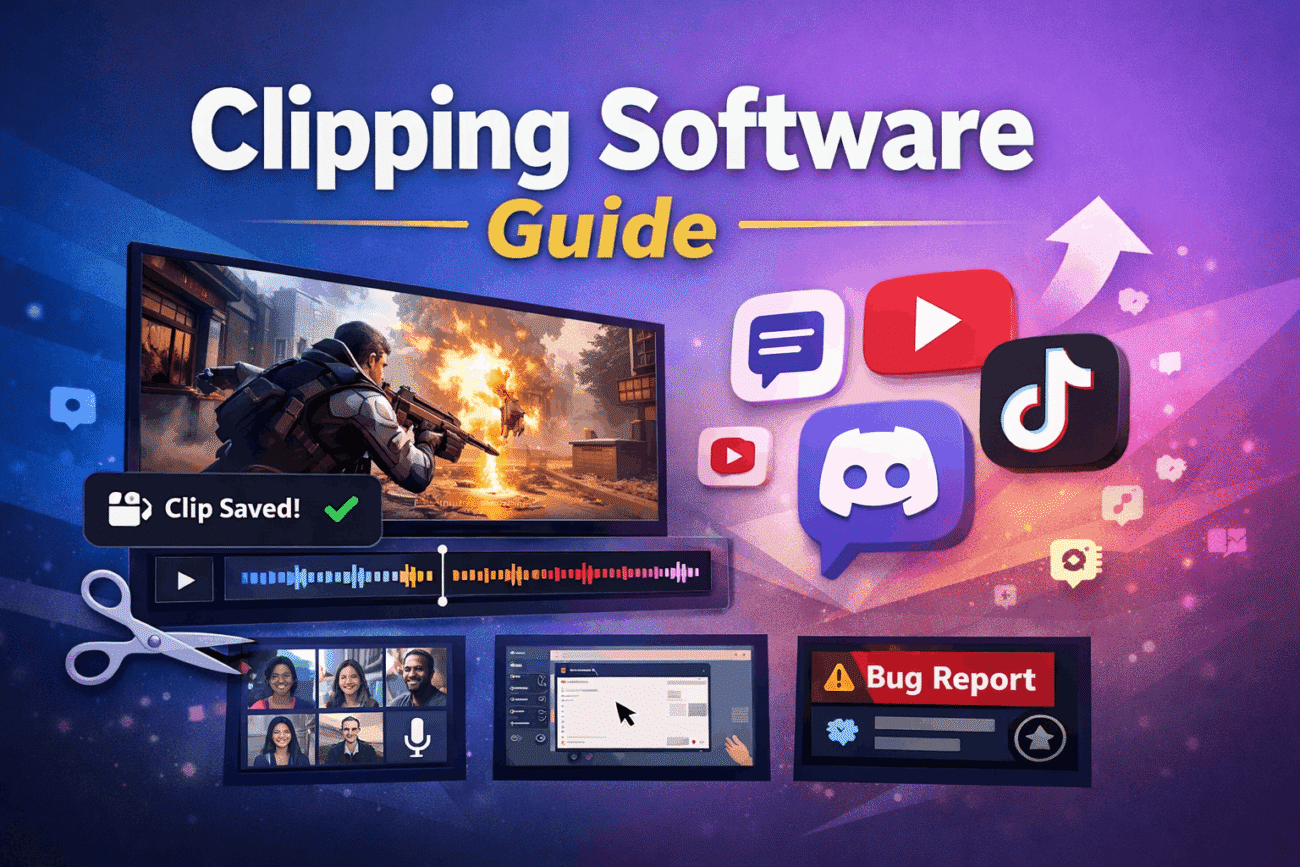
Have you ever hit an incredible gaming shot or completed a task you wished you had recorded? That’s exactly where clipping software comes in. Instead of recording hours of footage, these tools capture only the moments that matter, making it easy to save, edit, and share highlights.
Whether you’re a casual gamer, a streamer, or someone who creates tutorials, the right clipping software can save time while producing better-quality clips. Some applications focus on simplicity, while others offer advanced editing, cloud storage, and instant sharing.
This guide explains how clipping software works, what features actually matter, and how to choose the best option based on your needs. You’ll also learn about Medal clipping software, compare popular alternatives, and avoid common mistakes that many first-time users make.
What Is Clipping Software?
Clipping software is an application that records short video clips from your screen, usually by saving the last few seconds or minutes of activity. Instead of recording an entire gaming session or presentation, the software keeps a rolling buffer in the background. When something exciting happens, you press a hotkey, and it saves that recent moment as a video clip.
Although gaming is the most common use, clipping software has become useful for many other activities, including:
- Recording software tutorials
- Capturing online meetings
- Saving educational demonstrations
- Sharing technical issues with support teams
- Creating social media content
Modern clipping software also includes editing features, allowing users to trim videos, add captions, adjust quality, and publish clips directly to platforms like YouTube, TikTok, or Discord.
Why Clipping Software Has Become So Popular
People no longer want to sort through hours of recorded footage to find one memorable moment.
Modern computers have enough processing power to let clipping software quietly run in the background without noticeable interruptions. When a great moment happens, users simply save the last 30 seconds, one minute, or even several minutes instantly.
This convenience has made clipping software especially popular among:
- Competitive gamers
- Streamers
- YouTubers
- Coaches reviewing gameplay
- Students creating presentations
- Remote workers sharing screen recordings
Instead of planning every recording ahead of time, users capture moments after they happen.
How Clipping Software Works
Most clipping software continuously records your screen into temporary storage called a rolling buffer.
Imagine the software always keeping the last five minutes of gameplay. If nothing interesting happens, those recordings are automatically replaced by newer footage.
When you press your chosen shortcut key, the software permanently saves that buffered footage as a video file.
This approach offers several advantages:
- Minimal storage usage
- No need for constant manual recording
- Faster clip creation
- Less editing afterward
Many programs also let users customize:
- Recording resolution
- Frame rate
- Audio sources
- Clip duration
- Keyboard shortcuts
- Video format
These settings help balance video quality with system performance.
Features to Look for in the Best Clipping Software
Not every recording tool offers the same experience. Some prioritize simplicity, while others include professional editing capabilities.
Instant Replay
This is the core feature of most clipping software.
Instead of recording everything manually, instant replay saves recent gameplay or screen activity when you trigger it.
The smoother this process feels, the better the overall experience.
Performance Optimization
Nobody wants software that causes frame drops during competitive matches.
The best clipping software uses hardware acceleration from modern graphics cards to reduce CPU usage and maintain stable performance.
If you play fast-paced games, this feature should be near the top of your checklist.
Video Quality Controls
Different creators need different recording settings.
Look for software that allows adjustments for:
- Resolution
- Bitrate
- Frame rate
- Recording length
- Video codec
Higher settings improve quality but also require more storage space.
Built-in Video Editing
Simple editing tools save a surprising amount of time.
Useful editing features include:
- Trimming clips
- Combining highlights
- Adding captions
- Inserting transitions
- Adjusting audio
- Exporting in multiple formats
Basic editing inside the application often removes the need for separate software.
Easy Sharing
Many users clip content specifically to post online.
Direct uploads to platforms like YouTube, Discord, or social media simplify the process and reduce extra steps.
Cloud syncing is another useful feature if you switch between multiple devices.
Medal Clipping Software Explained
Among today’s most recognized options, Medal clipping software has earned a strong reputation within the gaming community.
Unlike traditional screen recorders, Medal focuses almost entirely on capturing gaming highlights quickly and sharing them with friends or followers.
Its workflow is intentionally simple:
Play your game, press a hotkey when something exciting happens, review the clip, trim it if necessary, and publish it.
Many players appreciate Medal because it removes much of the technical complexity found in professional video editors.
Some of its notable strengths include:
- Automatic game detection
- Instant replay recording
- Built-in editing tools
- Cloud storage options
- Social sharing features
- Organized clip library
For gamers who regularly create highlight reels, Medal offers a streamlined experience without requiring advanced editing knowledge.
That said, users should still consider how much cloud storage they need and whether the available editing tools match their workflow.
Comparing Popular Clipping Software Options
Choosing the right clipping software depends on what you plan to record. Some programs are designed specifically for gaming, while others work well for tutorials, business presentations, or general screen recording.
| Software | Best For | Key Strength | Possible Drawback |
|---|---|---|---|
| Medal | Gaming highlights | Fast clipping and sharing | Some advanced features require upgrades |
| OBS Studio | Streaming and recording | Highly customizable | Steeper learning curve |
| NVIDIA ShadowPlay | NVIDIA GPU users | Excellent gaming performance | Requires compatible hardware |
| Xbox Game Bar | Windows users | Built into Windows | Limited editing tools |
| AMD Software Recording | AMD graphics users | Efficient hardware recording | Fewer sharing features |
No single application is perfect for everyone.
A competitive esports player may prioritize low system impact, while a YouTube creator might value editing capabilities more than recording speed.
Choosing Clipping Software for Gaming
Gaming places unique demands on recording software.
Unlike ordinary screen recording, games require consistent frame rates and minimal input delay. Poorly optimized recording software can affect performance during critical moments.
When evaluating clipping software for gaming, pay attention to:
Hardware Acceleration
Applications that use your GPU instead of relying heavily on your CPU generally deliver smoother gameplay.
Adjustable Clip Length
Different games produce different highlight moments.
Some players only need the previous 30 seconds, while others prefer saving the last five minutes.
Flexible recording duration makes the software more useful.
Multi-Game Compatibility
If you frequently switch between titles, choose software that supports automatic game recognition.
This removes the need to configure recording settings every time you launch a different game.
Audio Controls
Many gamers want separate audio tracks for:
- Game sounds
- Microphone
- Voice chat
- Background music
Independent audio controls make editing much easier later.
Common Mistakes People Make When Using Clipping Software
Many users install recording software and leave every setting at its default value. While this works, it rarely delivers the best experience.
One common mistake is choosing unnecessarily high recording quality. Recording everything in maximum resolution can quickly consume storage without offering noticeable improvements for social media uploads.
Another mistake is assigning complicated keyboard shortcuts. If saving a clip requires remembering an awkward key combination, you’re more likely to miss important moments.
Some users also forget to check where clips are being saved. Over time, hundreds of recordings can fill a drive without them realizing it.
Finally, many beginners overlook audio testing. Discovering that your microphone wasn’t recorded after capturing an amazing clip can be incredibly frustrating.
Expert Tips for Better Clips
Creating memorable clips isn’t just about having good software. Small adjustments can noticeably improve the final result.
Keep your recording folder organized by creating folders for different games or projects. This makes finding older clips much easier.
Review your recording settings every few months, especially after upgrading your hardware. Better components may allow higher-quality recordings without affecting performance.
Trim clips before sharing them. Removing unnecessary seconds at the beginning or end keeps viewers engaged.
Finally, clean out old recordings regularly. Keeping only your best highlights saves storage space and makes your collection easier to manage.
Advanced Features Worth Considering
As clipping software has improved, many tools now offer features beyond simple recording. These extras may not be essential for everyone, but they can make your workflow much smoother if you create content regularly.
Automatic Highlight Detection
Some applications can identify exciting moments based on in-game events such as eliminations, victories, or achievements. While this feature isn’t perfect, it reduces the need to manually save every clip.
It’s especially useful for players who often forget to press their hotkey during intense matches.
Cloud Backup
Losing your best clips because of a hard drive failure is frustrating.
Cloud storage automatically uploads recordings so you can access them from different devices. If you frequently switch between a desktop and a laptop, this feature can save a lot of time.
Just remember that cloud storage limits vary depending on the software and subscription plan.
Custom Hotkeys
Every gamer has different preferences.
The ability to customize shortcut keys ensures they don’t interfere with game controls. Some users even create separate hotkeys for different recording lengths, such as:
- Save the last 30 seconds
- Save the last 2 minutes
- Start manual recording
- Take a screenshot
Having flexible controls makes clipping feel effortless.
Multiple Recording Profiles
If you play a mix of competitive games and slower-paced titles, separate recording profiles can be helpful.
For example:
- Profile 1: 1080p at 60 FPS for competitive shooters
- Profile 2: 1440p for cinematic adventure games
- Profile 3: Lower-quality recordings for longer sessions
Switching between profiles is much faster than changing settings every time.
How to Choose the Best Clipping Software
With so many options available, it’s easy to get distracted by long feature lists. Instead, focus on how you’ll actually use the software.
Casual Gamers
If you only save occasional highlights to share with friends, choose software that’s simple to install and easy to use.
Look for:
- Automatic recording
- One-click clipping
- Built-in sharing
- Low system usage
There’s no need to pay for advanced editing tools if you rarely edit videos.
Streamers and Content Creators
Creators usually need more flexibility.
Prioritize software that offers:
- High-quality recording
- Separate audio tracks
- Basic video editing
- Easy export options
- Reliable file organization
A well-organized clip library becomes increasingly important as your content grows.
Competitive Players
Performance should be your top priority.
The ideal clipping software for gaming should:
- Use minimal system resources
- Support hardware acceleration
- Record at high frame rates
- Save clips instantly
- Work consistently across multiple games
Even small frame drops can affect gameplay in competitive environments.
Professional Users
Not all clipping software is designed for gaming.
If you’re creating software tutorials, documenting bugs, or recording presentations, look for tools with:
- Screen annotation
- Window recording
- Webcam support
- High-quality audio capture
- Flexible export settings
These features make professional recordings easier to produce.
Pros and Cons of Clipping Software
Like any software category, clipping tools have strengths and limitations.
| Pros | Cons |
|---|---|
| Saves only important moments | Uses some system resources in the background |
| Reduces storage compared to full recordings | Premium features may require a subscription |
| Easy sharing to social platforms | Some tools only work with certain hardware |
| Helps create content faster | Incorrect settings may affect performance |
| Many options are beginner-friendly | Cloud storage can have upload limits |
Understanding these trade-offs helps you choose software that fits your needs rather than simply selecting the most popular option.
How to Improve Recording Performance
Even the best clipping software benefits from proper setup.
Close unnecessary background applications before launching games. This frees up memory and processing power for recording.
Store recordings on a drive with enough available space. A nearly full drive can slow down saving clips and reduce overall performance.
Update your graphics drivers regularly, as manufacturers often improve hardware recording support through driver updates.
Finally, test different bitrate and resolution settings before important gaming sessions. Finding the right balance between quality and performance can make a noticeable difference.
Is Free Clipping Software Good Enough?
For many users, yes.
Several free applications provide excellent recording quality and reliable performance without charging anything.
However, premium versions often include features like:
- Larger cloud storage
- Advanced editing
- Faster uploads
- Better organization
- AI-assisted clip management
- Priority support
If you only create clips occasionally, a free solution is usually enough.
If you’re publishing videos every week or managing hundreds of recordings, a paid version may be worth the investment.
FAQs
What is the best clipping software for beginners?
Software with a simple interface, automatic recording, and built-in sharing is usually the easiest place to start. Beginners often prefer tools that require little setup while still producing high-quality clips.
Is Medal clipping software only for gamers?
No. While Medal is primarily designed for gaming highlights, some users also use it for general screen recording. However, dedicated screen-recording software may be better for tutorials, presentations, or business use.
Does clipping software reduce FPS while gaming?
It can, but well-optimized software that uses GPU hardware acceleration generally has a minimal impact on performance. The exact effect depends on your computer’s specifications and recording settings.
How much storage do recorded clips require?
Storage depends on video quality, frame rate, bitrate, and clip length. Higher-quality recordings take up more space, so it’s a good idea to review your settings and remove unnecessary clips regularly.
Can I edit clips inside clipping software?
Many modern applications include basic editing tools such as trimming, cropping, adding text, and adjusting audio. If you need advanced effects or professional editing, you may still prefer dedicated video editing software.
Conclusion
The right clipping software should make recording effortless rather than adding extra work. Whether you’re capturing an incredible gaming play, creating educational content, or saving memorable moments, today’s tools are faster and more capable than ever.
For gamers, Medal clipping software remains a strong option thanks to its focus on instant highlights and easy sharing. Other solutions may be a better fit if you need advanced customization, professional editing, or hardware-specific features.
Instead of choosing software based on popularity alone, think about your recording habits, computer hardware, and long-term goals. A tool that fits your workflow will always provide a better experience than one with the longest feature list.
Take some time to test a few options, adjust your settings, and create sample recordings. Once everything is configured correctly, you’ll spend less time managing recordings and more time enjoying the moments worth saving.
