Take a look at your phone right now android apps arrangement.
How many apps do you have installed?
For most people, the answer is probably a lot more than they realize. Between social media apps, games, banking tools, shopping platforms, work applications, and streaming services, an Android phone can quickly become cluttered.
And honestly, a messy home screen can be frustrating.
You open your phone looking for one app and spend several seconds searching through pages of icons. It may not sound like a big deal, but those small moments add up over time.
That’s where android apps arrangement comes in.
A good app arrangement system can make your phone easier to use, improve productivity, and even reduce stress. Whether you have 20 apps or 200, organizing them properly can completely change your smartphone experience.
In this guide, we’ll explore different methods of arranging Android apps, practical organization tips, common mistakes to avoid, and step-by-step instructions for creating a cleaner, more efficient home screen.
What Is Android Apps Arrangement?
Android apps arrangement simply refers to how apps are organized on your device.
This includes:
- Home screen layouts
- App folders
- App drawer organization
- Widget placement
- Shortcut management
Every Android user has a different style.
Some people prefer a minimalist setup with only a few apps visible.
Others like having everything available on the home screen.
There isn’t one perfect method.
The goal is to create a system that works for you.
Why Organizing Apps Matters
At first glance, app organization might seem unimportant.
But a well-organized phone offers several benefits.
Faster Access
When apps are arranged properly, you spend less time searching.
Everything is exactly where you expect it to be.
Better Productivity
Organized devices help users focus on important tasks instead of getting distracted.
Cleaner Appearance
A neat home screen simply looks better.
Many people find it more enjoyable to use.
Reduced Stress
Believe it or not, digital clutter can feel overwhelming.
A cleaner interface often creates a calmer experience.
Common Android App Arrangement Styles
There are several popular ways to organize Android apps.
Let’s look at the most effective options.
Alphabetical Arrangement
This is one of the simplest methods.
Apps are organized from A to Z.
Advantages
- Easy to find apps
- No setup required
- Works well for large app collections
Disadvantages
- Frequently used apps may not be easily accessible
- Less personalized
Many Android launchers already support alphabetical sorting.
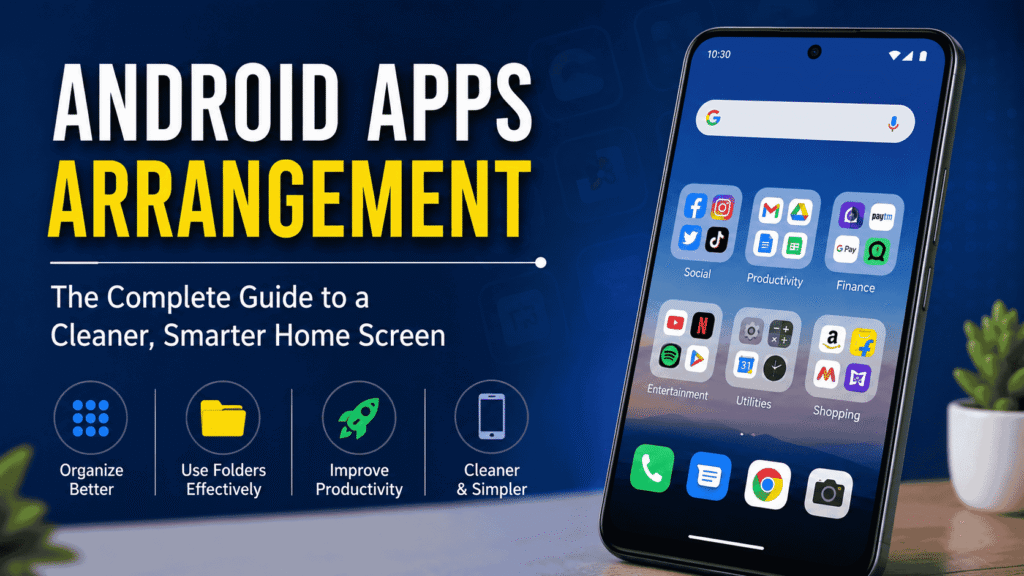
Category-Based Arrangement
This is one of the most popular approaches.
Apps are grouped by purpose.
Examples include:
- Social Media
- Productivity
- Entertainment
- Finance
- Shopping
- Travel
- Photography
This method creates a logical structure that many users find easy to navigate.
Frequency-Based Arrangement
Some users arrange apps according to how often they use them.
Most-used apps stay on the first screen.
Less-used apps move to secondary pages.
This approach can save time throughout the day.
Color-Based Arrangement
This method focuses on visual organization.
Apps are grouped by icon color.
For example:
- Blue apps together
- Red apps together
- Green apps together
While it looks attractive, it may not be practical for everyone.
How to Arrange Android Apps Step by Step
If your phone feels cluttered, don’t worry.
Organizing it is easier than you might think.
Step 1: Remove Unused Apps
Start by reviewing everything installed on your device.
Ask yourself:
- Do I use this app?
- Do I actually need it?
- Have I opened it recently?
Delete anything you no longer use.
You’ll immediately reduce clutter.
Step 2: Identify Essential Apps
Make a list of apps you use daily.
Examples might include:
- Phone
- Messages
- Camera
- Gmail
- Maps
These apps deserve a prominent position.
Step 3: Create Folders
Folders help reduce visual clutter.
Some useful folder ideas include:
Social Folder
- X
- Snapchat
- TikTok
Work Folder
- Slack
- Teams
- Gmail
- Zoom
Entertainment Folder
- Netflix
- YouTube
- Spotify
- Disney+
Folders make navigation much easier.
Step 4: Organize Home Screens
Try assigning a purpose to each screen.
For example:
| Screen | Purpose |
|---|---|
| First Screen | Daily essentials |
| Second Screen | Work apps |
| Third Screen | Entertainment |
| Fourth Screen | Utilities |
This system creates consistency.
Step 5: Use Widgets Wisely
Widgets can be useful.
But too many widgets create clutter.
Keep only the ones you genuinely use.
Popular choices include:
- Weather
- Calendar
- Notes
- Music controls
Best Android Apps Arrangement Ideas
Looking for inspiration?
Here are some popular layouts.
Minimalist Setup
This arrangement focuses on simplicity.
Home screen includes:
- Phone
- Messages
- Browser
- Camera
- Calendar
Everything else stays in the app drawer.
Many users find this approach refreshing.
Productivity Setup
Designed for work-focused users.
Featured apps:
- Calendar
- Task manager
- Notes
- Video meetings
Distractions are minimized.
Student Setup
Ideal for students.
Useful folders include:
- Study Tools
- Research Apps
- Note Taking
- Communication
Learning resources remain easy to access.
Entertainment Setup
Perfect for media lovers.
Includes:
- Streaming apps
- Music platforms
- Gaming apps
- Social media
Everything fun stays organized in one place.
Using the Android App Drawer Effectively
Many users forget about the app drawer.
That’s a mistake.
The app drawer is designed to hold every installed application.
Your home screen should only display the apps you use most often.
Think of the app drawer as storage.
And the home screen as your workspace.
This mindset helps keep things organized.
Best Launchers for Android App Organization
Launchers can dramatically improve organization.
Some popular options include:
Nova Launcher
One of the most customizable Android launchers available.
Features include:
- Folder customization
- Gesture controls
- Icon management
- App hiding
Microsoft Launcher
Great for productivity-focused users.
Benefits include:
- Clean interface
- Microsoft integration
- Custom layouts
Niagara Launcher
A minimalist launcher that prioritizes simplicity.
Many users love its unique design.
Common Android App Arrangement Mistakes
Even with good intentions, people sometimes make organization mistakes.
Too Many Home Screens
Five or six pages of apps can become difficult to manage.
Try keeping things simple.
Ignoring Folders
Without folders, home screens become crowded very quickly.
Keeping Unused Apps
Old apps create unnecessary clutter.
Delete what you don’t need.
Overusing Widgets
Widgets are useful.
But too many can overwhelm the screen.
Tips for Maintaining App Organization
Organization isn’t a one-time task.
You’ll need occasional maintenance.
Review Monthly
Take five minutes each month to review installed apps.
Remove Unnecessary Downloads
Apps you no longer use should be deleted.
Update Your Layout
Needs change over time.
Your organization system should evolve too.
Keep Important Apps Accessible
Don’t bury frequently used apps inside multiple folders.
Android Apps Arrangement for Different Users
Different users have different needs.
Professionals
Focus on:
- Calendar
- Productivity tools
Students
Prioritize:
- Notes
- Research apps
- Learning platforms
Seniors
Keep layouts simple.
Use:
- Larger icons
- Essential apps only
- Easy-to-find folders
Gamers
Organize games into dedicated folders.
Separate them from work and productivity tools.
FAQs
What is the best android apps arrangement method?
Category-based organization is often the most practical because it groups similar apps together.
How many apps should be on the home screen?
Most experts recommend keeping only your most-used apps on the main screen.
Should I use folders?
Yes. Folders reduce clutter and improve navigation.
Is it better to use the app drawer?
For many users, yes. It keeps the home screen clean while still providing access to all installed apps.
Which launcher is best for organizing Android apps?
Nova Launcher, Microsoft Launcher, and Niagara Launcher are among the most popular choices.
How often should I reorganize my apps?
A monthly review is usually enough for most users.
Conclusion
A thoughtful android apps arrangement can completely transform how you use your smartphone. Instead of wasting time searching through cluttered screens, you can quickly find what you need and enjoy a cleaner, more organized experience.
Whether you prefer alphabetical sorting, category-based folders, minimalist layouts, or customized launchers, the best system is the one that fits your daily habits. Start by removing unused apps, organizing important tools into folders, and simplifying your home screen.
The result is a phone that feels faster, cleaner, and much easier to use. Sometimes a little organization goes a long way.